¶ Through ThinMan Login
¶ Agile
When attempting to access the device via ThinMan Login with an expired LDAP password, the system will display the message Password Expired (refer to the image below).
Please note that the ThinMan Login functionality is compatible with the following presentation modes: Desktop, Multi-Apps, Single-App and Quick-App.
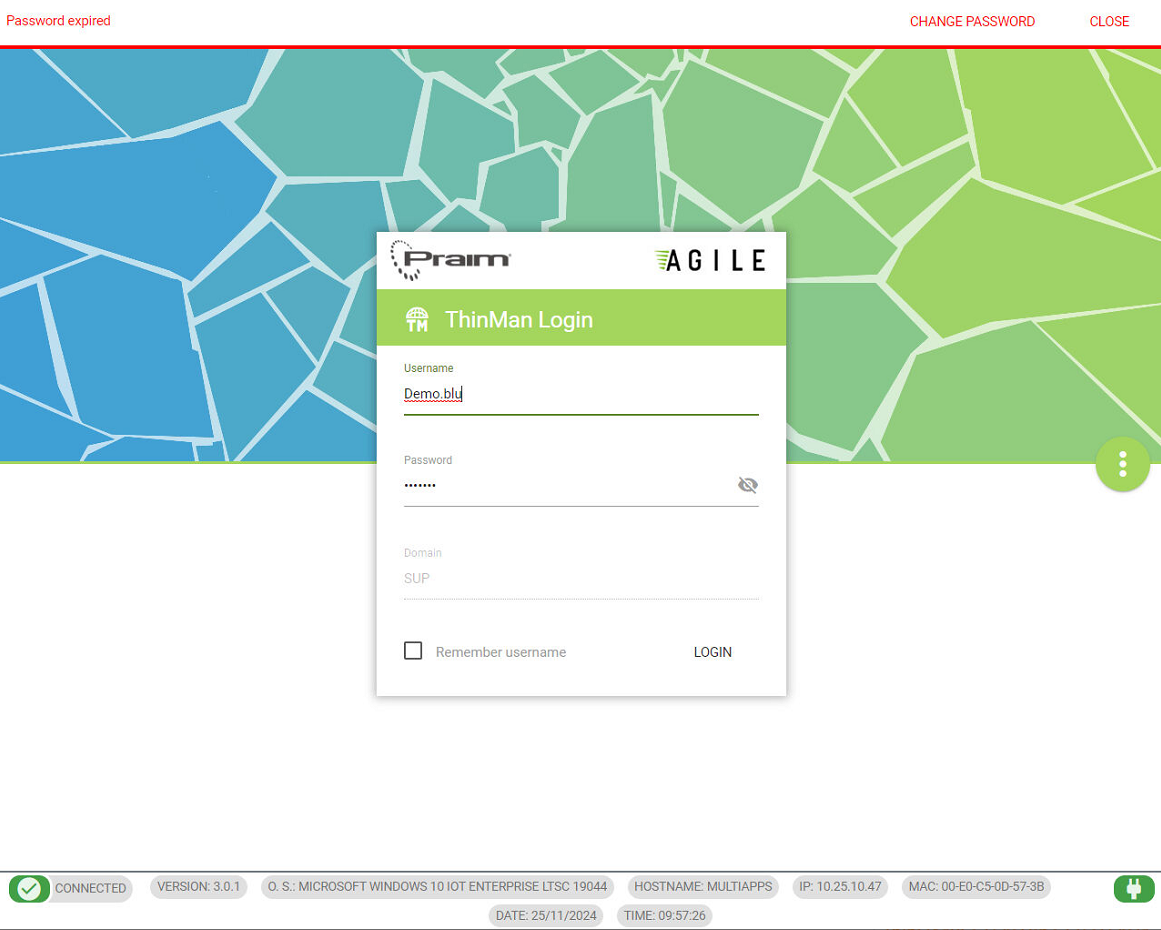
Click on Change Password to proceed.
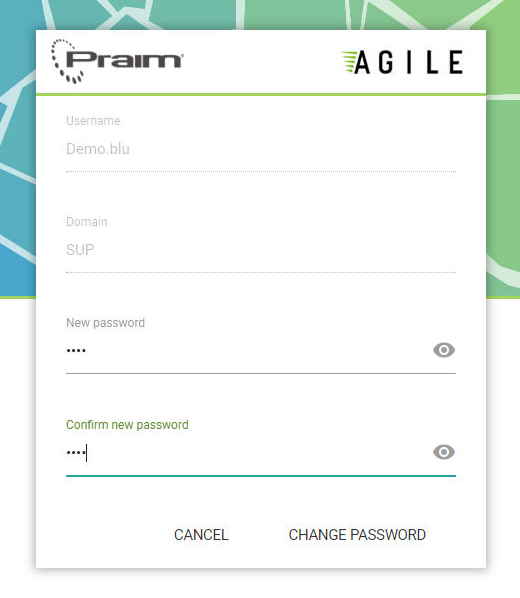
Write the new password, confirm new password anc click on Change Password.
¶ ThinOX
When trying to access the device through the ThinMan Login with an expired LDAP password, the message below will appear.

Click on OK to continue.

Write the old password, new password, confirm new password anc click on Change Password.
¶ Through ThinMan Smart Identity
¶ Agile
When attempting to access the device via Smart Identity (set with double factor authentication) with an expired LDAP password, the system will display the message Password Expired (refer to the image below).
Please note that the Smart Identity functionality is compatible with the following presentation modes: Desktop, Multi-Apps, Single-App and Quick-App.
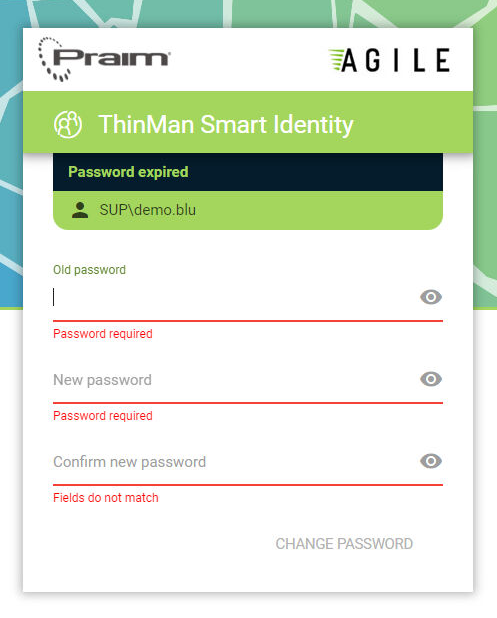
Write the old password, new password, confirm new password anc click on Change Password.
¶ ThinOX
When trying to access the device through the Smart Identity (set with double factor authentication) with an expired LDAP password, the window below will appear.

Write the old password, new password, confirm new password anc click on Change Password.